How to Grant Collaborator Access
If you need help with FreeGo, our support team may request collaborator access to investigate your store's setup, free shipping bar, or theme integration.
To get started, share your store URL and 4-digit collaborator request code with our team. We will use these details to send an access request through Shopify.
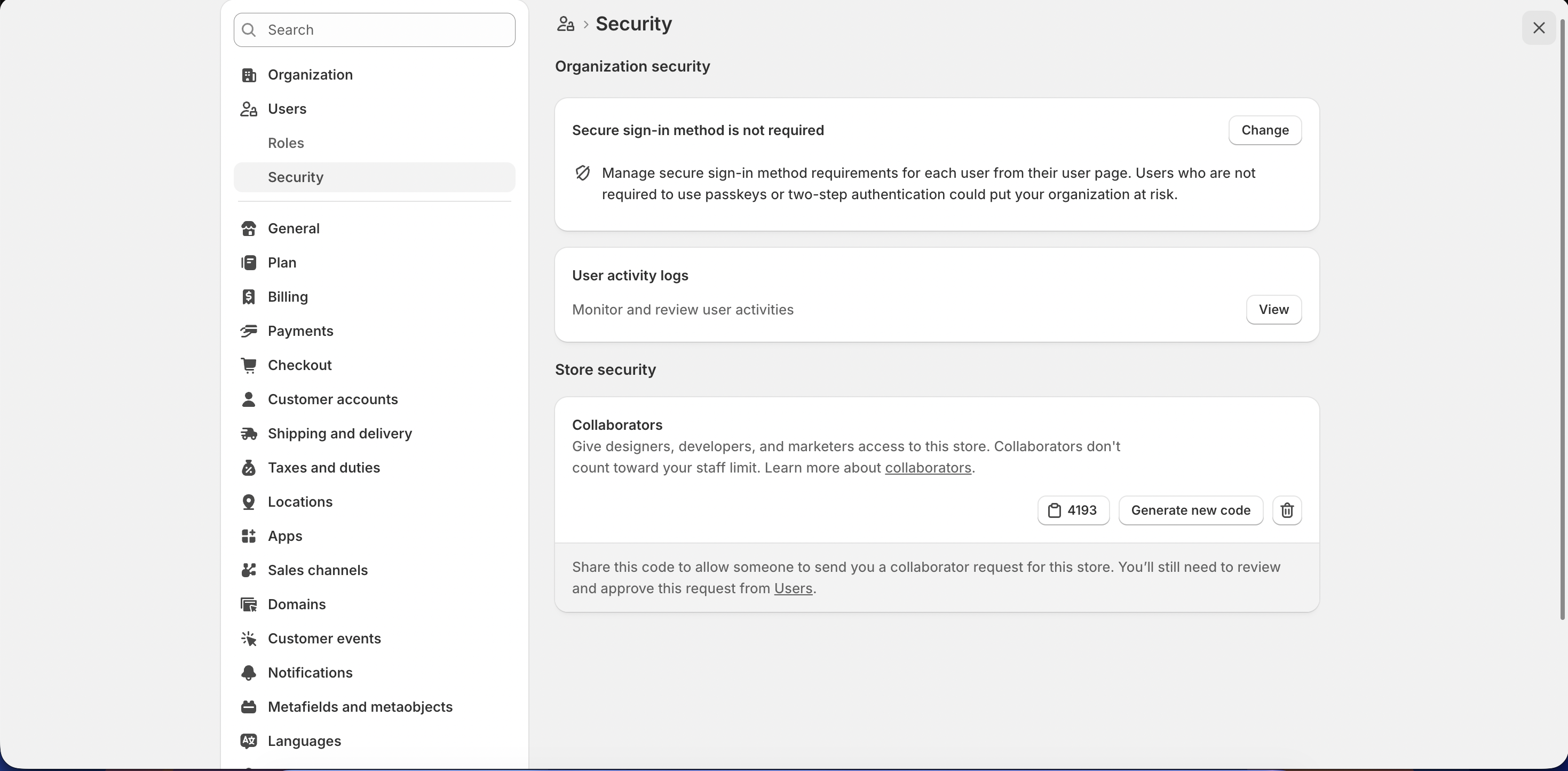
Step 1: Find your collaborator request code
- From your Shopify admin, go to Settings => Users.
- Open Users or Users & permissions, depending on your store's setup.
- Click Security.
- Find the Collaborators section and copy the 4-digit code.
Step 2: Send the details to FreeGo Support
Send the following information to [email protected] or share it in your existing support conversation:
- Your Shopify store URL, such as
your-store.myshopify.com. - Your 4-digit collaborator request code.
- A short description of the issue, with screenshots if available.
Once we receive your details, our team will send a collaborator access request to your store.
Sharing the code allows us to request access. Access is granted only after you approve the request in Shopify.
Step 3: Approve the access request
- In your Shopify admin, go to Settings => Users.
- Select Requests to view pending requests.
- Open the request from our team.
- Review the requested roles and permissions.
- Click Accept request.
Let us know once you have approved the request so we can continue investigating your issue.
What if the code does not work?
Go to Settings => Users => Security and click Generate new code under Collaborators. Send the new code to our support team so we can submit the request again.
Generating a new code invalidates the previous one.
For more information, see Shopify's guide to collaborator accounts.
Need help?
If you cannot find your code or access request, contact [email protected] with your store URL and a screenshot of the page you are viewing